GA4 Is Lying About Your AI Traffic, Here’s How to Make It Tell the Truth
To track AI traffic in GA4, you need to create a custom channel group with a regex rule that catches referrals from ChatGPT, Perplexity, Gemini, Claude, Copilot, and other LLM platforms because GA4 does not do this automatically. Without this setup, most of your AI-referred visits are silently bucketed as “Direct” and you have no idea they exist.
I’ll be honest: I set this up for a client last year, and the results were humbling. Not because the AI traffic was huge, it wasn’t. But because it was already there, converting well, and completely invisible in their reports. We were flying blind. Let’s fix that for you.
Why does GA4 hide your AI traffic in the first place?
GA4 misattributes AI traffic because most LLM platforms strip the referrer header before sending visitors to your site.
When a normal website links to you, your browser passes a “referrer” signal that tells GA4 where the visitor came from. AI chatbots often don’t do this. The user clicks a link inside ChatGPT, the referrer gets dropped, and GA4 has no idea it was an AI tool that sent the visitor. So it calls it “Direct.”
According to the State of AI Traffic 2026 report by Loamly (based on 446,405 visits analyzed), 70.6% of all AI-referred visits arrive with no HTTP referrer and get bucketed as Direct/None in GA4. That means for every one AI visit you can see in your reports today, there are likely two or three more hiding in your “Direct” channel.
This matters more than it sounds. Adobe Analytics data from Q1 2026 shows that AI-referred traffic to US retail sites jumped 393% year-over-year and that the same traffic converted 42% better than non-AI traffic, spent 48% more time on site, and generated 37% more revenue per visit. You are sitting on a high-quality traffic source that your current setup can’t measure.
What you’ll need before starting:
- GA4 Editor or Admin access to your Google Analytics property
- About 20 minutes
- No coding required
What does AI traffic actually look like in GA4 before you fix anything?
Before setup, AI traffic shows up scattered across four different channels: Referral, Direct, Unassigned, and Organic Search, with no way to see it as a unified group.
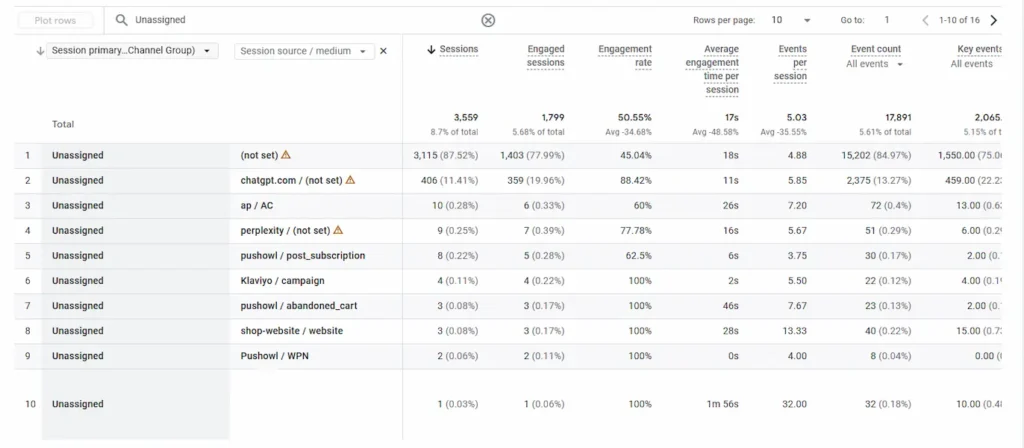
Here’s something I saw first-hand. When I pulled an Unassigned channel breakdown for an e-commerce client, there it was: chatgpt.com / (not set), 406 sessions, 88.42% engagement rate, 459 key events. That was their second-largest Unassigned source. It had been sitting there the whole time, hiding in plain sight under a channel nobody was monitoring.
The same data told a bigger story. Their LLM/AI Traffic channel (once we set it up retroactively) showed 2,055 sessions, 3.97% of all site traffic. The engagement rate was 63.55%, and the session key event rate was 3.55%, competitive with organic search at 3.74%.
The traffic was real. It was converting. And for months, nobody knew it existed.
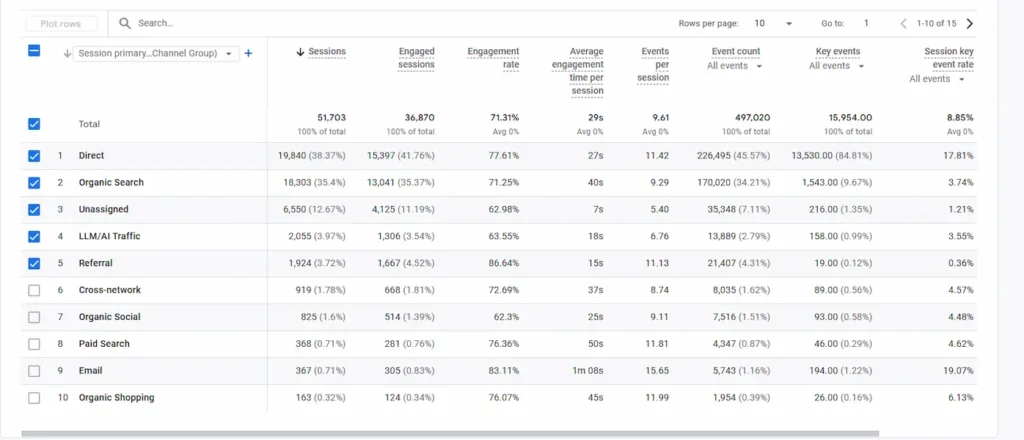
Step 1: How do I create a custom channel group for AI traffic in GA4?
Go to GA4 Admin → Data Display → Channel Groups, then create a new channel group that includes an LLM/AI Traffic channel with a regex source rule.
Here is the exact step-by-step process:
- Open GA4 Admin → scroll to the Data Display section → click Channel Groups
- Click “Create new channel group.” Do not edit the Default Channel Group directly. Build a separate one so your default data stays clean.
- Name the channel group, I use “Enhanced AI Channel Group” so it’s searchable and clearly distinct
- Click “Add new channel” inside the group
- Name the channel “LLM/AI Traffic” (or whatever sounds cool)
- Set the condition: Session Source → matches regex → paste in your regex string (see below)
- Save the channel, then save the channel group
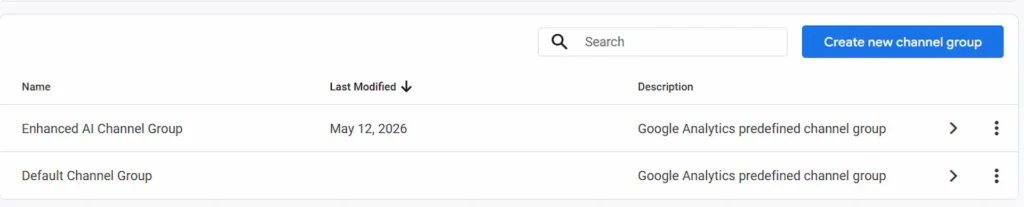
POV: The new channel group applies retroactively to all historical data in your GA4 property. That means the moment you save it, you can immediately look back at the past 12 months and see AI traffic you never knew existed. Do this before you do anything else.
Step 2: What regex string should I use to catch all the major AI platforms?
Use a regex that captures all major LLM referral domains in one rule, including ChatGPT, Perplexity, Gemini, Claude, Copilot, and Bing AI.
Here is the regex string I use and recommend:
.*(chatgpt|openai|perplexity|gemini|claude|anthropic|copilot|meta\.ai|searchgpt|ai\.google).*
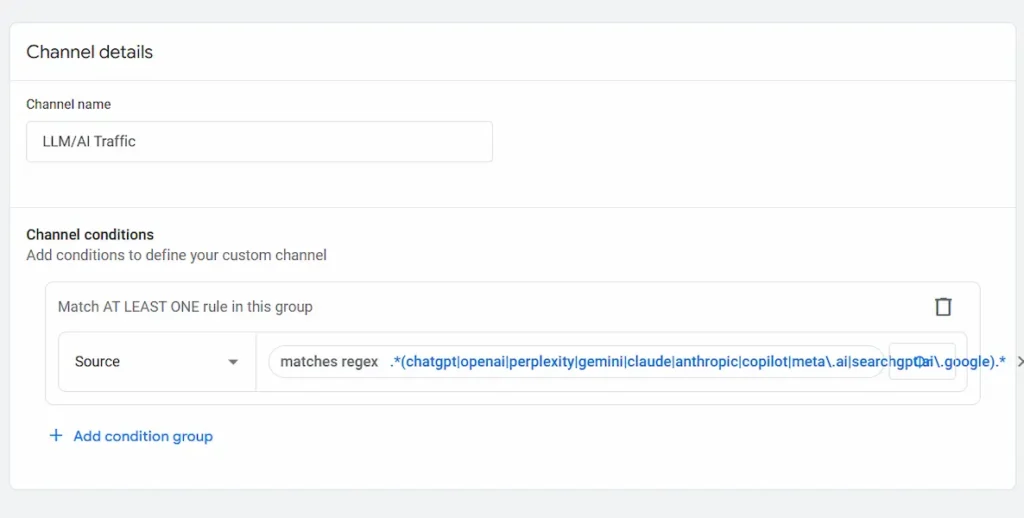
This is the same string visible in the Channel Details screen above. It catches:
- chatgpt.com (all sub-sources: referral, feed, ai-assistant, organic)
- openai.com (direct OpenAI-sourced traffic)
- perplexity.ai (including perplexity/(not set) variants)
- claude.ai/anthropic.com (Anthropic’s platforms)
- gemini.google.com and ai.google (Google’s AI platforms)
- copilot.microsoft.com (Microsoft Copilot)
- meta.ai (Meta AI)
- searchgpt (OpenAI’s search product)
Update this list every 2–3 months. New AI platforms scale quickly. Grok, DeepSeek, and Mistral have all crossed meaningful traffic thresholds in 2026. Check your Referral source list in GA4 quarterly and add new AI domains to the regex as they appear.
The common mistake I see: people only add chatgpt.com and call it done. ChatGPT drives roughly 64.5% of all Gen AI referral traffic (Digital Bloom, Feb 2026), but that still leaves over a third of your AI traffic untracked if you stop there.
Step 3: How do I read the LLM/AI Traffic report once it’s set up?
Go to Reports → Acquisition → Traffic Acquisition, then switch the channel group dimension to your new Enhanced AI Channel Group.
Once you’ve saved the channel group, here is how to use it:
- In GA4, go to Reports → Acquisition → Traffic Acquisition
- Click the channel group dimension dropdown at the top of the table (it defaults to “Session primary channel group”)
- Select your new channel group, “Enhanced AI Channel Group”
- Your LLM/AI Traffic channel will now appear as its own row in the table
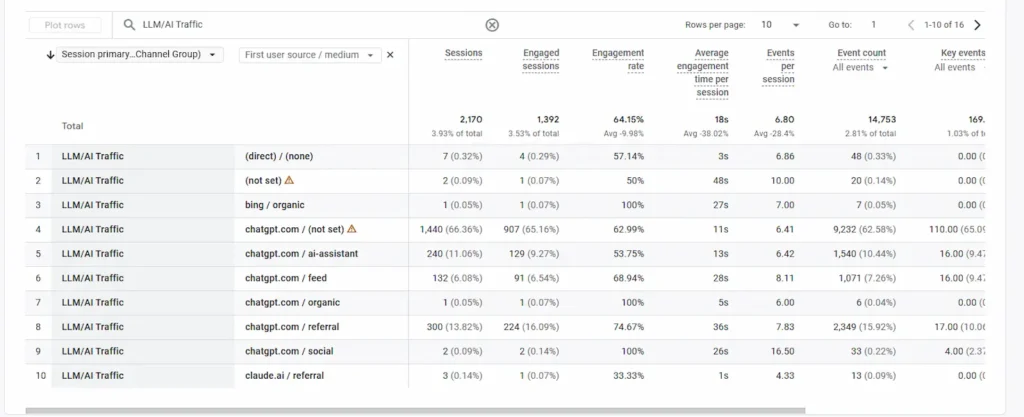
What you’re looking for in the data:
- Sessions: total volume of AI-referred visits
- Engaged sessions: visitors who stayed longer than 10 seconds or completed an interaction
- Engagement rate: how this compares to organic search (aim for parity or better)
- Key events: conversions attributed to AI traffic (sign-ups, purchases, form fills)
- Average engagement time: AI-referred visitors often spend more time per session than organic visitors
In the data from the client example above, chatgpt.com/referral generated 300 sessions with a 74.67% engagement rate and an average engagement time of 36 seconds. Compare that to their average organic search. AI visitors were more engaged, not less.
POV: Filter the breakdown by “First user source/medium” instead of session source. This tells you whether AI is introducing new users to the brand, not just getting credit for return visits.
What are most people getting wrong about tracking AI traffic in GA4?
Most people build the channel group, see a small number, and conclude AI traffic doesn’t matter yet, without accounting for the 70%+ of AI visits still hiding in Direct.
The custom channel group catches AI visits where the referrer is passed. It does not fix the attribution gap caused by stripped referrers. That 70.6% dark traffic figure is not a quirk; it’s the default behaviour of most LLM interfaces when a user copies a link or uses the chat interface on mobile.
Here is how to reduce the hidden traffic problem:
- Add UTM parameters to any links you control, if you’re sharing your own content in newsletters, social posts, or partner placements, tag them with utm_source=chatgpt&utm_medium=ai_referral so GA4 can recognize the traffic even without a referrer
- Check the Direct channel for anomalies, unusually high engagement rates in Direct (above 70%) or sudden Direct traffic spikes can indicate untagged AI traffic leaking through
- Compare Search Console impression data to GA4 sessions on your AI Overview-targeted pages. Large impression counts with flat clicks often mean AI is answering the query without a click, which still has brand value even if it doesn’t show in GA4
According to Siege Media’s traffic analysis, ChatGPT referral traffic grew 25.6% between May and June 2025 alone, while organic search grew 5.2% over the same period. The trajectory is clear. If your GA4 isn’t set up to see it, you’re making content and budget decisions based on incomplete data.
The honest takeaway: the channel group is the first layer. Server-side tagging is the complete solution. But the channel group takes 20 minutes to set up and costs nothing. Start there.
If you want help auditing your GA4 attribution setup or building a proper AI traffic dashboard, connect with me on LinkedIn, I review setups like this regularly.